Step-by-step guide on how to add and link accounts in your eMoney client portal. Learn how to connect institutions or add accounts manually.
You can add accounts to your Personal Financial Website in eMoney in two ways:
- Connected accounts, which update automatically
- Manual accounts, for institutions or assets without online access
This guide walks through both options.
How to Add Connected Accounts
Connected accounts allow balances and transactions to update automatically.
Step 1: Start Adding an Account
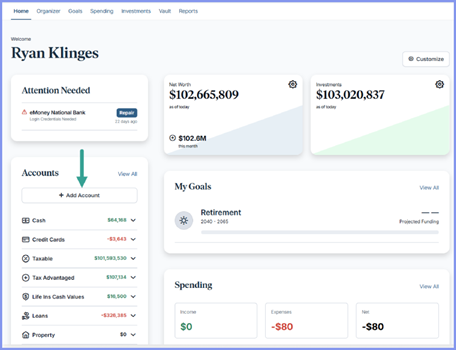
From your Home page, click Add Account.
You can also access this by clicking Organizer, then Accounts, and selecting Add Accounts.
Step 2: Search for the Financial Institution
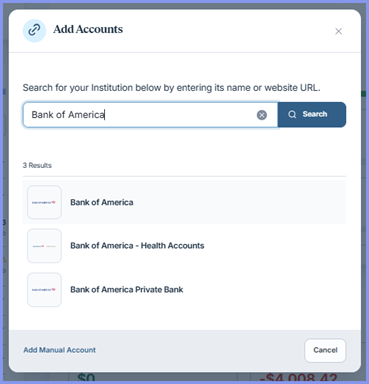
Enter the name of the financial institution and click Search.
Select the correct institution from the list.
Step 3: Authorize the Connection
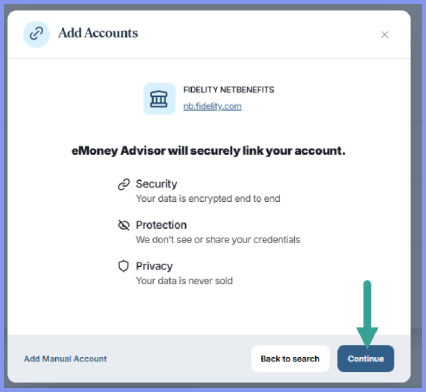
Click Continue to authorize the data connection.
Enter your login credentials for that institution and click Submit.
If there is an issue, a status message will appear explaining what needs to be corrected.
Step 4: Review Connected Accounts
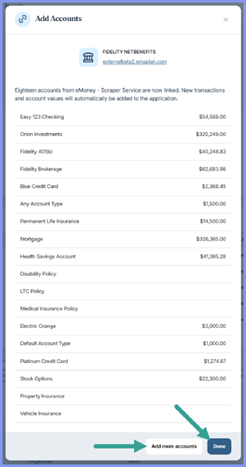
Once verified, review the accounts that were found.
Click Done to return to your account overview, or select Add more accounts.
Managing Connected Accounts
Each connected account may occasionally require maintenance.
View Connection Status
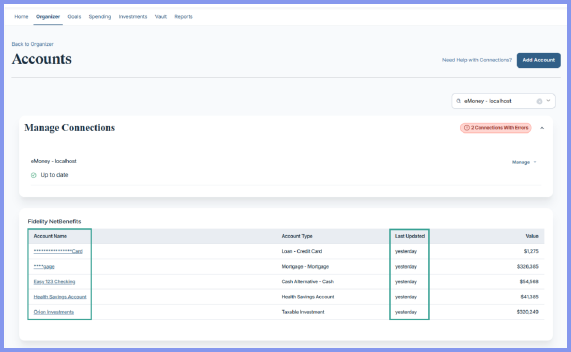
From the Accounts page, you can see:
- When accounts were last updated
- Whether any connections require attention
If a repairable issue exists, the institution name will appear as a link you can click.
Manage a Connection
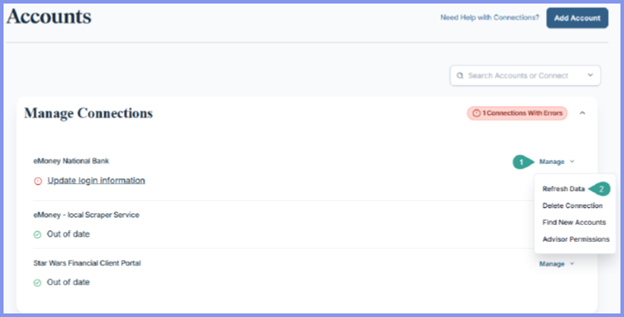
Use the Manage drop‑down to:
- Refresh Data manually
- Find New Accounts opened after the connection was established
Deleting a Connection
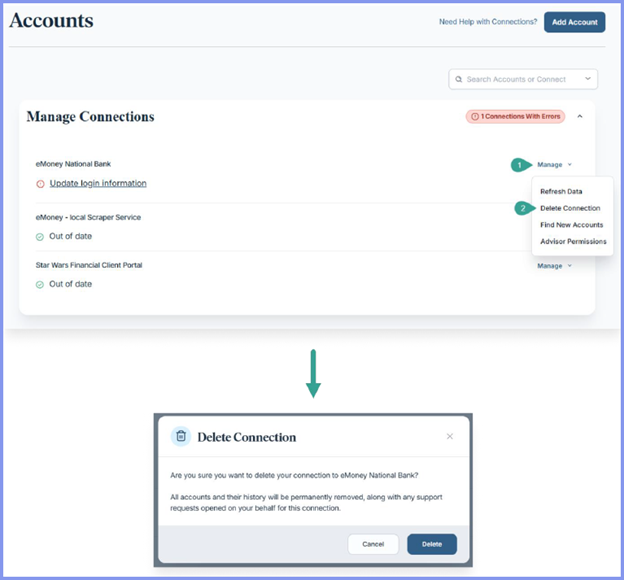
You may choose Delete Connection to remove a connection and all associated accounts.
Important: Deleting a connection permanently removes account history and is not recommended unless the accounts are no longer needed.
Advisor Permissions
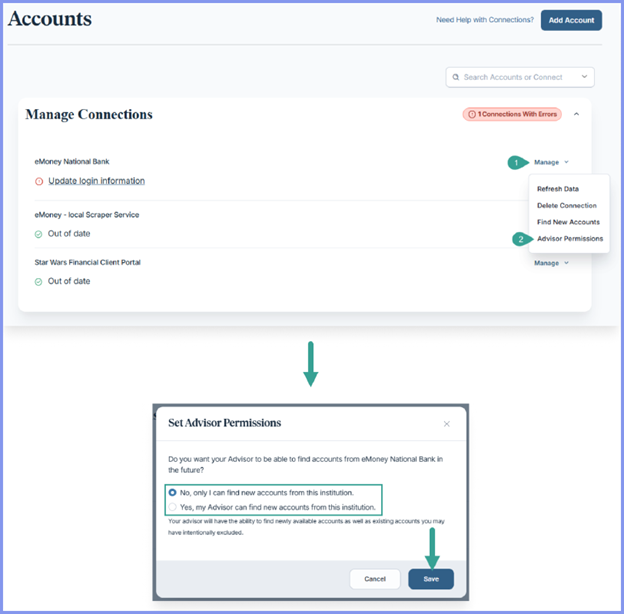
You may allow your advisor to Find New Accounts on your behalf by enabling Advisor Permissions.
Adding Manual Accounts
Manual accounts are useful for assets without online access.
Step 1: Start a Manual Account
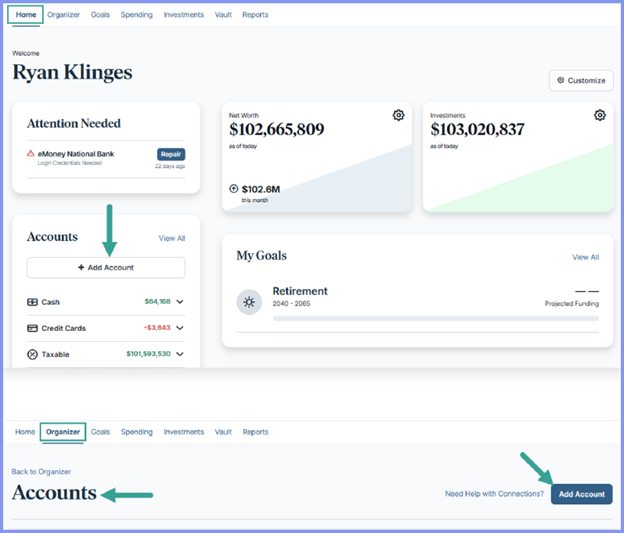
Click Add Accounts from the Home or Accounts page.
If you do not see the manual option, contact your advisor.
Step 2: Select Manual Account
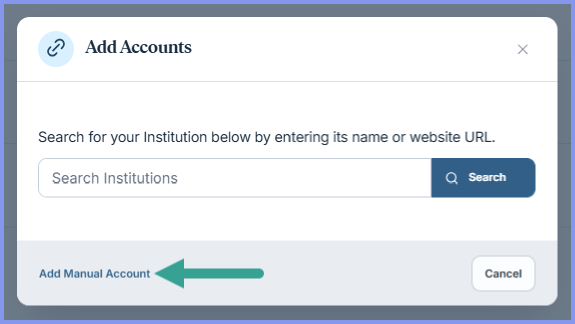
Click Add Manual Account.
Choose the appropriate account category and account type.
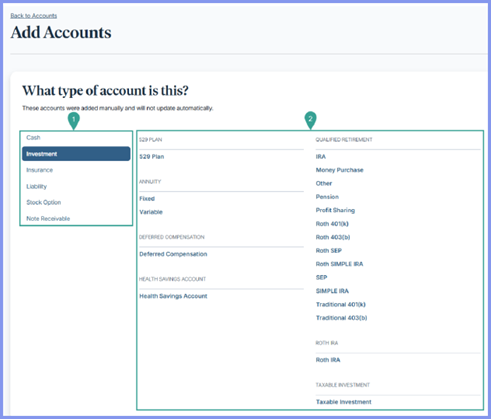
Step 3: Enter Account Details
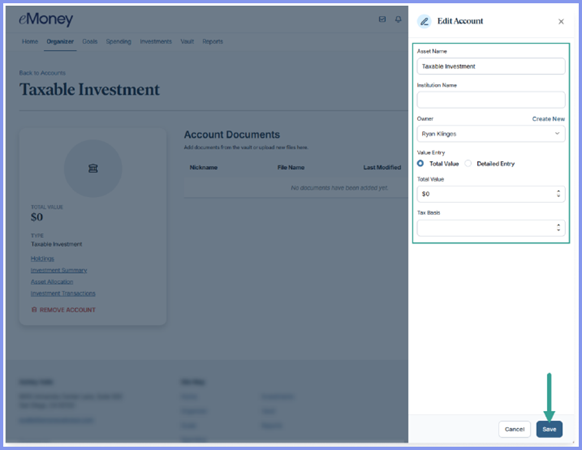
Enter the basic account information and click Save.
Need Help?
Keeping your accounts connected ensures your financial plan stays accurate and up to date. If you’d like help adding accounts, troubleshooting connections, or deciding which accounts to link, please contact Navalign — we’re always happy to help.