Spending categories help organize your transactions so your cash flow, budgeting, and planning insights are accurate and meaningful. While eMoney automatically categorizes transactions based on information from financial institutions, it’s a best practice to review and fine‑tune categories so they reflect your real‑world spending.
Editing Spending Categories for Transactions
By default, eMoney assigns categories using the transaction description provided by your financial institution. You can update these categories at any time.
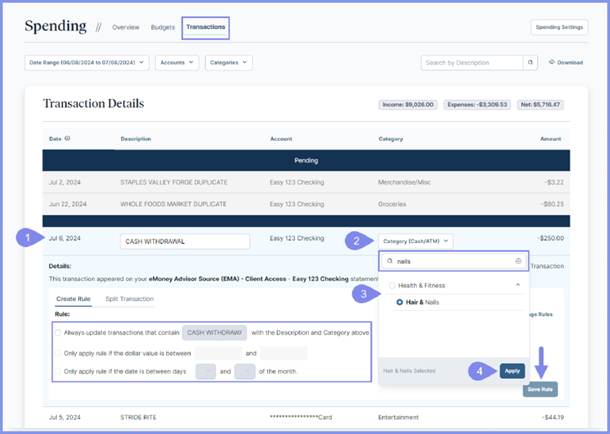
To change a transaction’s category:
- Navigate to the Spending section of your eMoney portal.
- Click on the row for the specific transaction you want to update.
- Select a new Category from the dropdown.
- Click Apply to save the change.
To keep future transactions categorized the same way:
- Check the box to create a Rule
- Click Save Rule
This will automatically apply the new category to similar transactions going forward as well as transactions in the past with the same description.
Adding Custom Sub‑Categories
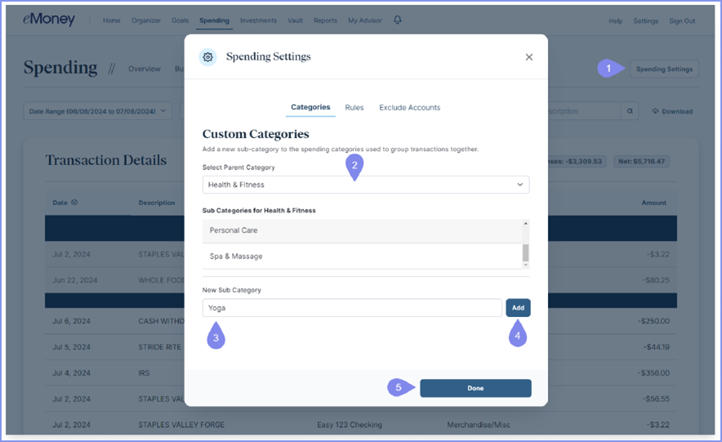
If none of the existing categories fit a particular transaction, you can create your own custom sub‑categories.
To add a new sub‑category:
- Click Spending Settings.
- Select the appropriate Parent Category.
- Enter the name of your new Sub‑Category.
- Click Add, then Done.
Custom sub‑categories help make your spending reports more precise and easier to review.
Need Help?
Spending categories are a powerful tool for understanding your cash flow and improving planning insights. If you’d like help reviewing categories, setting up rules, or simplifying your spending view, please contact Navalign — we’re always happy to help.