Adding the eMoney login page to your iPhone home screen allows you to access your account quickly, without opening a browser each time.
This guide walks you through the process using Safari, the default browser on iPhone.
What You’ll Need
- An iPhone
- The Safari app
- Your eMoney login URL
If you don’t have your login URL, refer to the confirmation email you received when your access was set up.
Step 1: Open Safari
Open the Safari app on your iPhone.
Step 2: Go to the Login Page
Enter your eMoney login URL in the address bar, then tap Go.
Step 3: Open the Share Menu
At the bottom of the screen, tap the Share icon
(the square with an arrow pointing up).
Step 4: Add to Home Screen
From the menu, select Add to Home Screen.
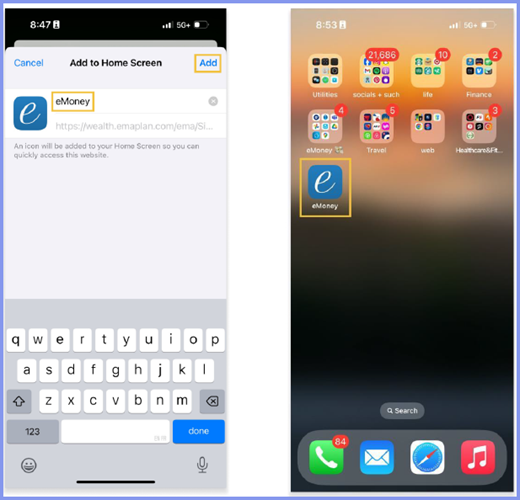
Step 5: Name the Shortcut (Optional)
You may edit the name of the shortcut if you’d like.
Tap Add to finish.
The eMoney login icon will now appear on your home screen.
Need help?
Adding eMoney to your iPhone Home Screen makes accessing your financial plan quick and convenient. If you’d like help setting this up or have any questions, please contact Navalign — we’re always happy to help.