If you’ve forgotten your eMoney password, you can reset it securely in just a few steps. This process helps protect your information while getting you back into your Client Portal as quickly as possible.
If you run into any issues along the way, our team is always happy to help.
Step 1: Start the Password Reset
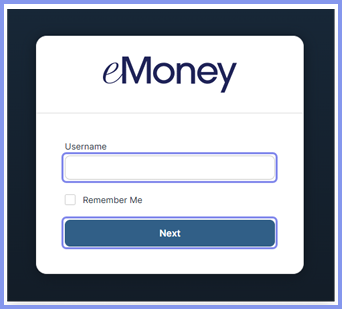
- Go to the eMoney login page.
- Enter your username and click Next.
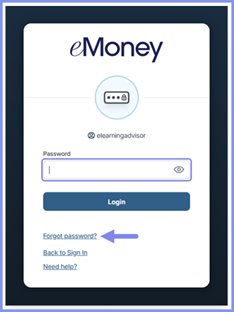
- On the password screen, click Forgot Password?
📌 For security purposes, after three unsuccessful login attempts, your account will automatically lock for 10 minutes. Once the lockout period ends, you can follow the steps below to reset your password.
Step 2: Request the Reset Email
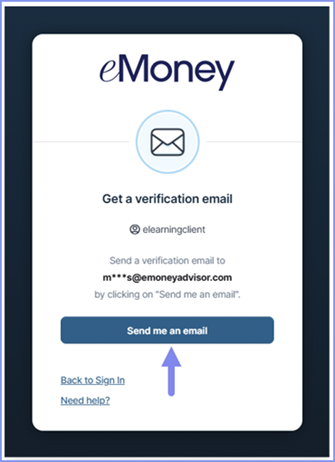
- Click Send me an email to receive a password reset message.
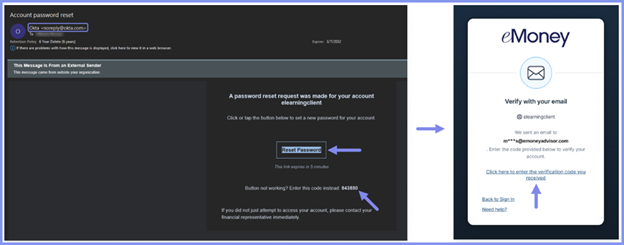
- The email will come from noreply@okta.com.
- Open the email and click Reset Password.
If the button doesn’t work:
- Click the link to enter the verification code instead.
- Enter the code from the email and click Login.
📌 If you don’t see the email, be sure to check your spam or junk folders.
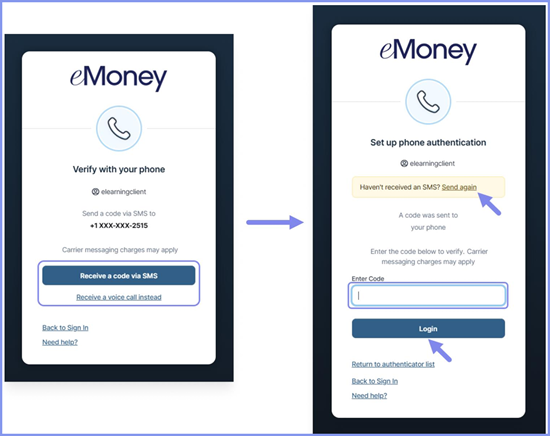
Step 3: Complete Two‑Factor Authentication
To verify your identity, you’ll be prompted to complete two‑factor authentication.
- Choose Receive a code via SMS or Receive a voice call instead.
- Enter the code you receive.
- Click Login to continue.
This step adds an extra layer of security to protect your account.
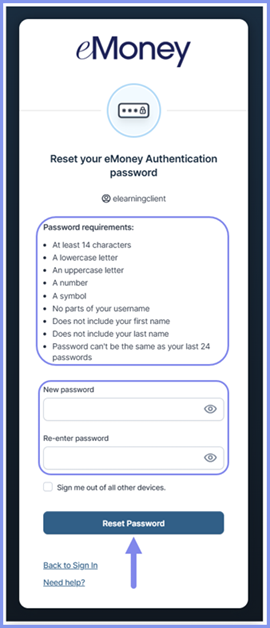
Step 4: Create a New Password
Once your identity is verified:
- Enter your new password.
- Re‑enter the password, making sure it meets the listed requirements.
- Click Reset Password.
You’ll then be redirected to your eMoney home page.
Need Help?
Resetting your eMoney password helps keep your account secure and ensures uninterrupted access to your financial plan. If you’d like help resetting your password or run into any issues, please contact Navalign — we’re always happy to help.